MULTI-DEVICE COMPATIBILITY

Device Installation Guides

Simple step-by-step setup guides to activate Strong8K IPTV on any device or TV player in under 5 minutes.

πŸ‘‡ Choose your device below and scroll down to see the installation guide
⚠️
Important Notice:
Your purchase includes the Strong8K high-bandwidth IPTV subscription. The media player application is third-party software (TiviMate & IPTV Smarters Pro offer free versions, while specialized Smart TV apps may offer a free trial).
Example: Think of your Strong8K subscription as fuel β€” you still need a car (the player app) to drive!
πŸ”₯

Amazon FireStick TV Setup Guide – Strong8K

⏱️ 3–5 Minutes βœ“ Xtream Codes API Firestick 4K / Max / Cube / Lite
ℹ️
Compatible Devices: Amazon Fire TV Stick (All Generations), Fire TV Stick 4K, 4K Max, Fire TV Cube, Fire TV Lite, and Insignia/Toshiba Fire TV Edition Smart TVs.
1

Install the "Downloader" App from Amazon Appstore

Step 1 of 5 β€’ Locating the official sideloading tool

To install IPTV applications on Fire TV, you first need Amazon's official Downloader app by AFTVnews.

  • From your Fire TV Home screen, go to the Find menu and select Search.
  • Type Downloader into the on-screen search bar using your Fire TV remote.
  • Under APPS & GAMES, select the bright orange Downloader tile (rated 4.5+ stars by 670,000+ users).
  • Click Download or Get to install it onto your Firestick.
βœ“ Safety Note: Downloader is 100% free, verified, and safe from the official Amazon Appstore.
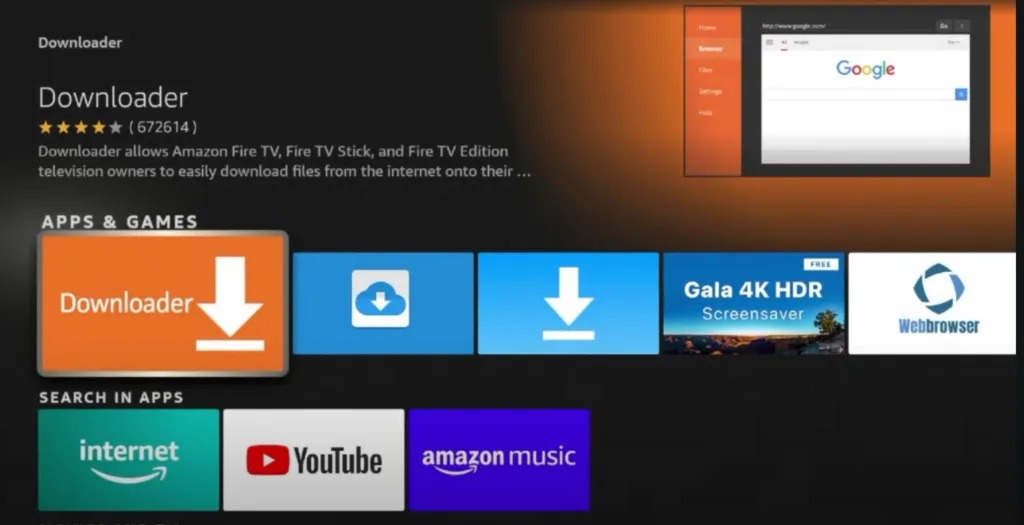
Locating Downloader App in Fire TV Apps and Games
Step 1: Select the orange Downloader app under "APPS & GAMES"
2

Open Fire TV Settings & Select "My Fire TV"

Step 2 of 5 β€’ Accessing device settings

Amazon Fire OS requires enabling permission to sideload IPTV streaming apps. Begin by navigating to your device settings.

  • Press the Home button on your remote to return to the Fire TV Home Screen.
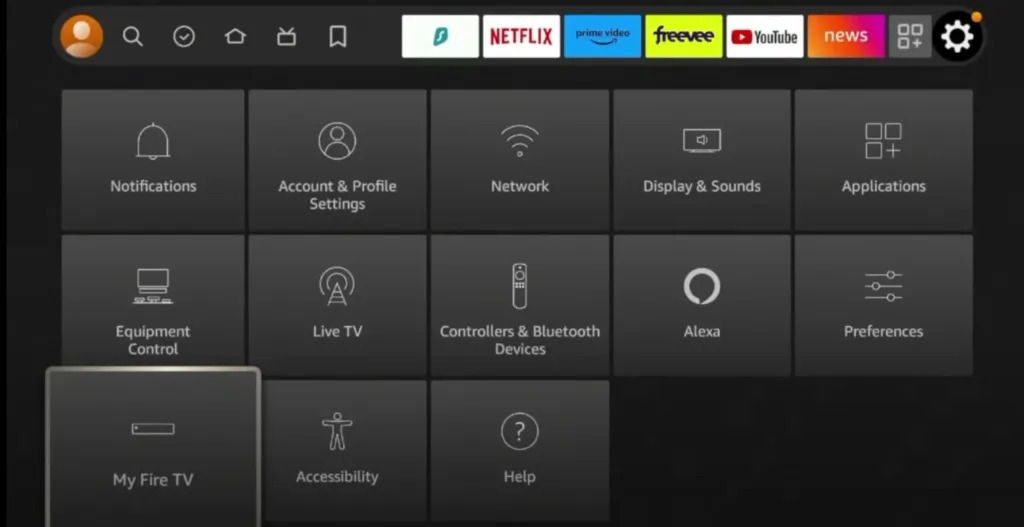
  • Scroll across the top menu to the far right and select the Settings (Gear icon).
  • In the Settings menu grid, scroll down to the bottom row.
  • Highlight and click on My Fire TV (on older models, this may be labeled "Device" or "System").
Fire TV Settings Grid with My Fire TV Selected
Step 2: Navigate to Settings (Gear) and select "My Fire TV"
3

Open Developer Options & Select Unknown Sources

Step 3 of 5 β€’ Unlocking developer permissions

Inside the My Fire TV menu, locate and open Developer Options.

  • Click on Developer Options.
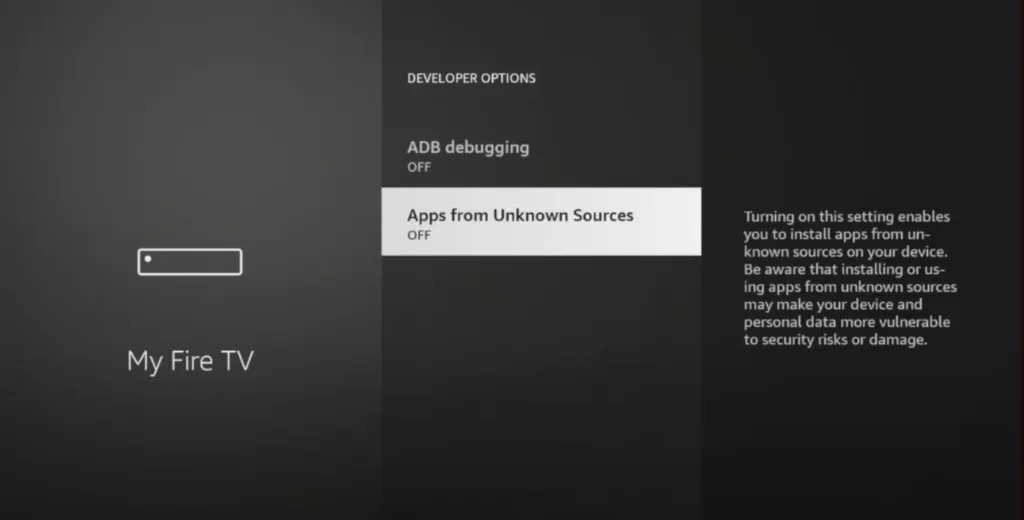
  • Highlight Apps from Unknown Sources (or "Install Unknown Apps" on modern Fire OS versions).
πŸ’‘ Developer Options Missing on your Firestick?
Amazon hides this menu by default on newer Fire OS 7 and 8 updates. To unhide it in seconds:
  1. Go to Settings > My Fire TV > About.
  2. Highlight your Fire TV Stick name and press the center remote button 7 times rapidly.
  3. A prompt will appear: "No need, you are already a developer".
  4. Press Back once, and Developer Options will now be unlocked!
Developer Options Apps from Unknown Sources
Step 3: Open Developer Options > Apps from Unknown Sources
4

Toggle "Downloader" to ON in Install Unknown Apps

Step 4 of 5 β€’ Authorizing the Downloader application

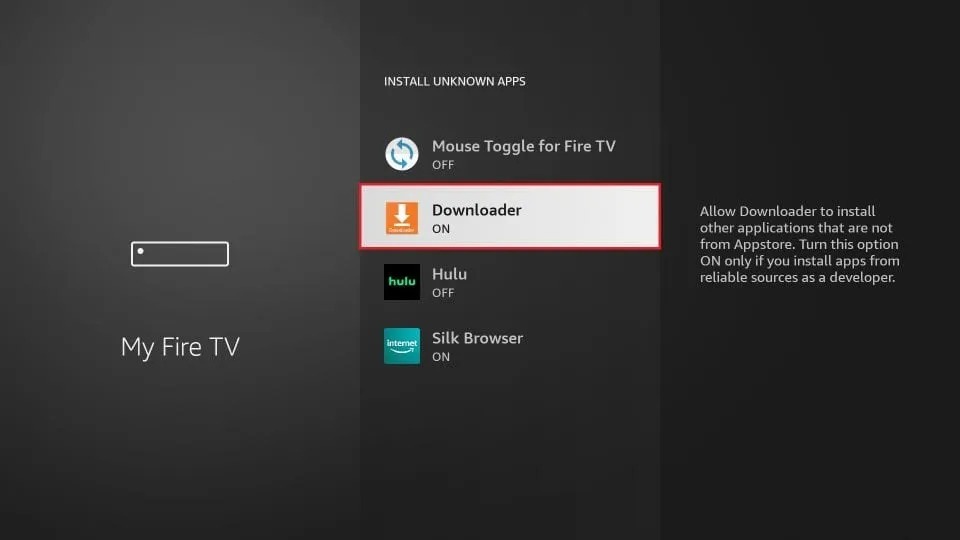
To allow Downloader to install the Strong8K player package, you must switch its permission to ON.

  • Inside Developer Options, select Install Unknown Apps (or turn Apps from Unknown Sources to ON).
  • Scroll down through your installed apps until you locate Downloader.
  • Click on Downloader to switch its status from OFF to ON.
  • Downloader is now fully authorized to install your IPTV streaming media player.
Protection: Only Downloader is granted permission. Your Fire TV remains secure.
Install Unknown Apps Downloader ON
Step 4: Switch Downloader to "ON" in Install Unknown Apps
5

Launch Downloader & Enter the Download Code

Step 5 of 5 β€’ Downloading your streaming player

Now open Downloader to grab your IPTV player installation package.

  • Hold down the Home button on your remote, choose Apps, and open Downloader.
  • If opening for the first time, click Allow for file storage permissions, then click OK.
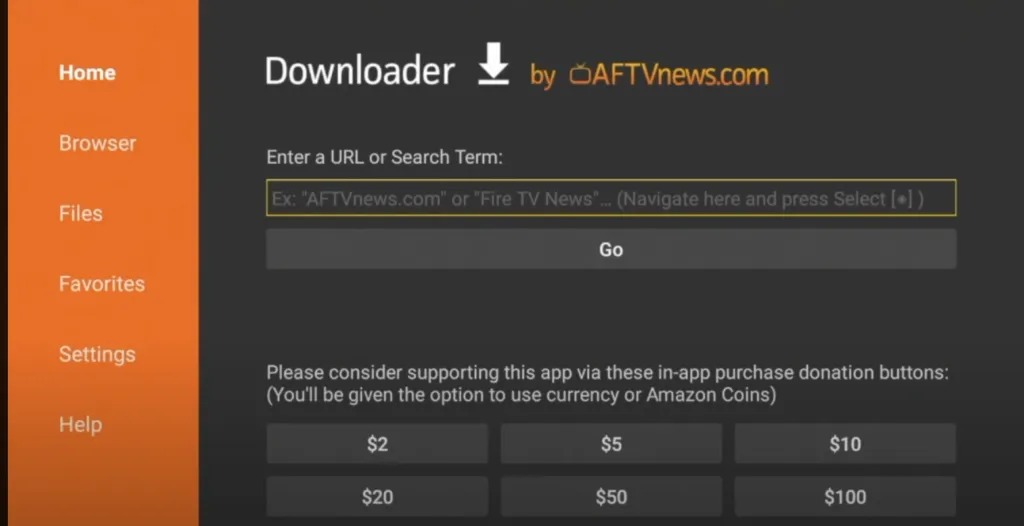
  • On the Home tab (orange sidebar), click into the search box: "Enter a URL or Search Term".
  • Enter the Quick Code: 298344 (or 272483 for TiviMate).
  • Click the Go button. The download will start automatically!
Downloader Quick Code
298344
Downloader App Home Screen URL Input Box
Step 5: Enter the code in Downloader URL bar and click Go
6

Automatic Redirection & APK Installation

Step 6 of 6 β€’ Downloading and installing the media player

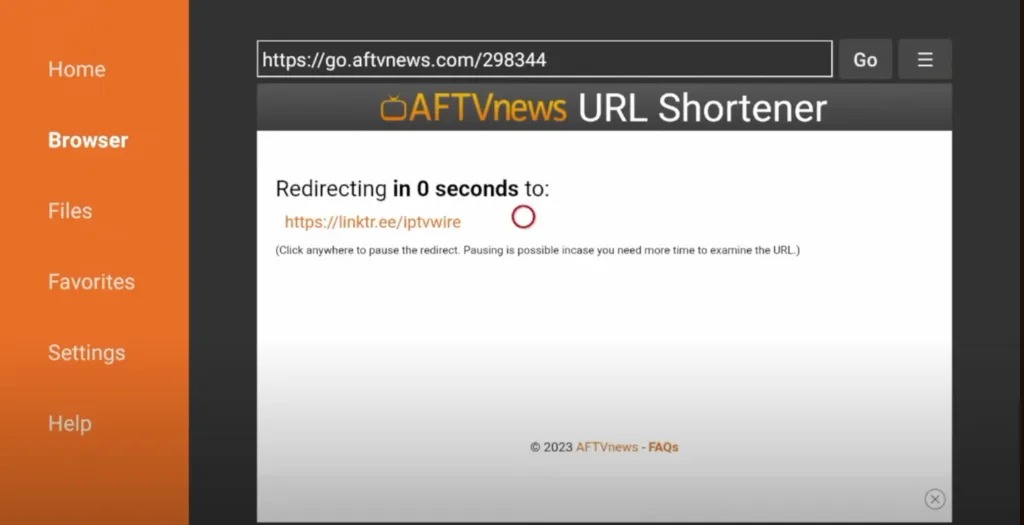
Downloader's built-in web browser will load the AFTVnews URL Shortener service and initiate the download.

  • The browser will display "Redirecting in 0 seconds..." and route to the secure APK download link.
  • Downloader will immediately commence the APK download progress bar.
  • Once the download reaches 100%, an installation pop-up will appear on your TV. Click Install.
  • Once installed, click Done, then click Delete twice to remove the APK setup file and save Firestick storage space!
AFTVnews URL Shortener Redirection in Downloader
Step 6: AFTVnews URL Shortener automatically redirects to download the APK
βœ“

Complete Installation & Connect to Strong8K

Setup Complete β€’ Start streaming 25,000+ live channels

Once the download completes, Fire TV will prompt you to install. Click Install, then click Open.

  • Open your installed player (TiviMate or IPTV Smarters Pro).
  • Select Add Playlist > Login with Xtream Codes API.
  • Enter your Strong8K activation credentials:
Playlist Name
Strong8K
Server URL / Portal
http://line.strong-8k.tv:80
Username
Your Username (from email)
Password
Your Password (from email)

Click Add User or Connect. Wait 15–30 seconds for your full playlist of 25,000+ live TV channels, sports derbies, EPG guide, and 4K/8K movies to sync!

Need Assistance with Firestick Setup?

Our dedicated support engineers can guide you through remote activation or send direct M3U setup links via WhatsApp 24/7.

πŸ€–

Android TV & Google TV Setup Guide (V12 OTT) – Strong8K

⏱️ 3–5 Minutes βœ“ V12 OTT / V12MATE Sony, TCL, Philips, Xiaomi, Nvidia Shield, Chromecast
ℹ️
Supported Android TV Devices: Sony Bravia Android TV, TCL Google TV, Philips Ambilight, Hisense Android TV, Xiaomi Mi Box & TV Stick 4K, Nvidia Shield TV / Pro, Google Chromecast with Google TV, and all Android TV Boxes (Android 7.0+).
1

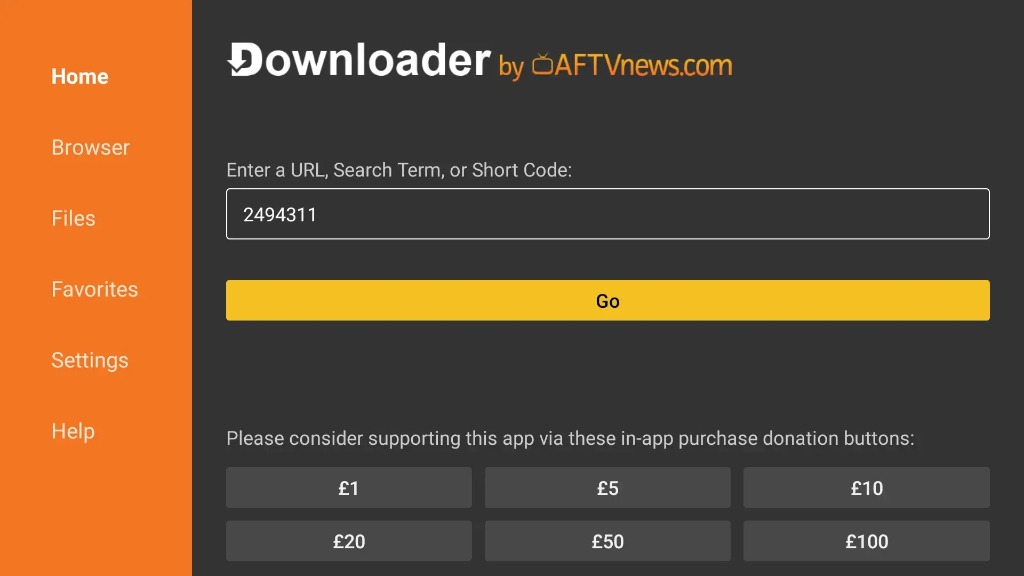
Open Downloader & Enter Quick Code 2494311

Step 1 of 8 β€’ Downloading the V12 OTT APK installer

Open the Downloader app on your Android TV or Box (install from Google Play Store if not already installed).

  • On the Home tab (orange sidebar), click inside the "Enter a URL, Search Term, or Short Code" box.
  • Type the Quick Code: 2494311.
  • Highlight and click the yellow Go button. Downloader will connect and begin downloading the v12mate.apk file automatically.
V12 OTT Quick Code
2494311
Downloader App Home Screen with Quick Code 2494311
Step 1: Enter code 2494311 in Downloader and click Go
2

Download Complete & Click "Install"

Step 2 of 8 β€’ Launching the APK installer package

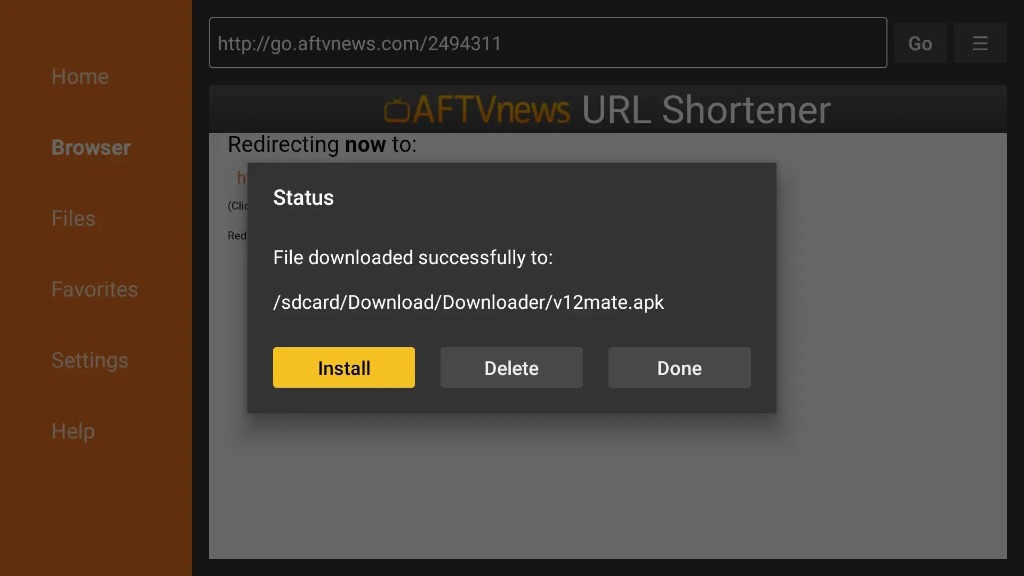
Once the download completes, a Status confirmation pop-up will appear on your screen.

  • The dialog indicates: "File downloaded successfully to: /sdcard/Download/Downloader/v12mate.apk".
  • Highlight and click the yellow Install button.
Status File downloaded successfully v12mate.apk
Step 2: Status prompt β€” click the yellow "Install" button
3

Confirm Application Installation

Step 3 of 8 β€’ Android system permission confirmation

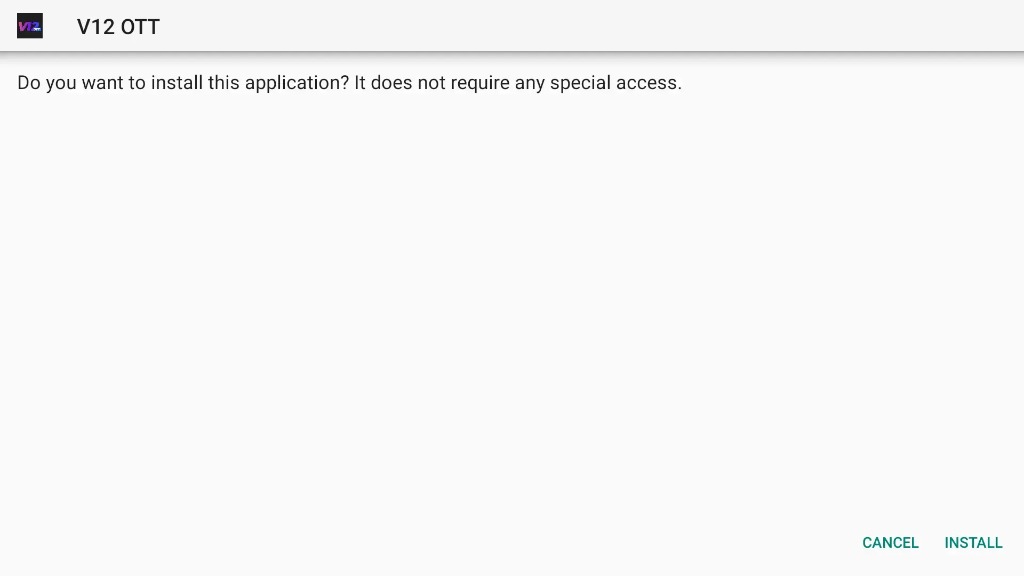
The Android system package installer screen will display.

  • You will see the prompt: "Do you want to install this application? It does not require any special access."
  • Highlight and click INSTALL in the bottom right corner of your screen.
V12 OTT Do you want to install this application
Step 3: Click "INSTALL" on the package confirmation screen
4

App Installed & Launch V12 OTT

Step 4 of 8 β€’ Opening the installed media player

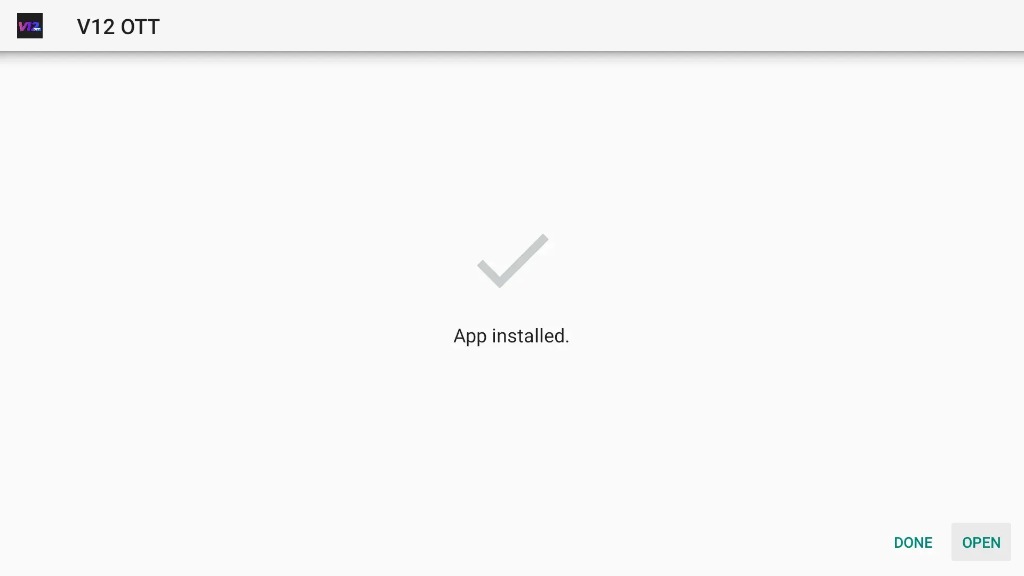
The system will confirm the installation with a checkmark.

  • The screen will show a checkmark and state: "App installed."
  • Select OPEN in the bottom right corner to launch V12 OTT immediately.
V12 OTT App installed Done Open
Step 4: App installed β€” click "OPEN" to launch
5

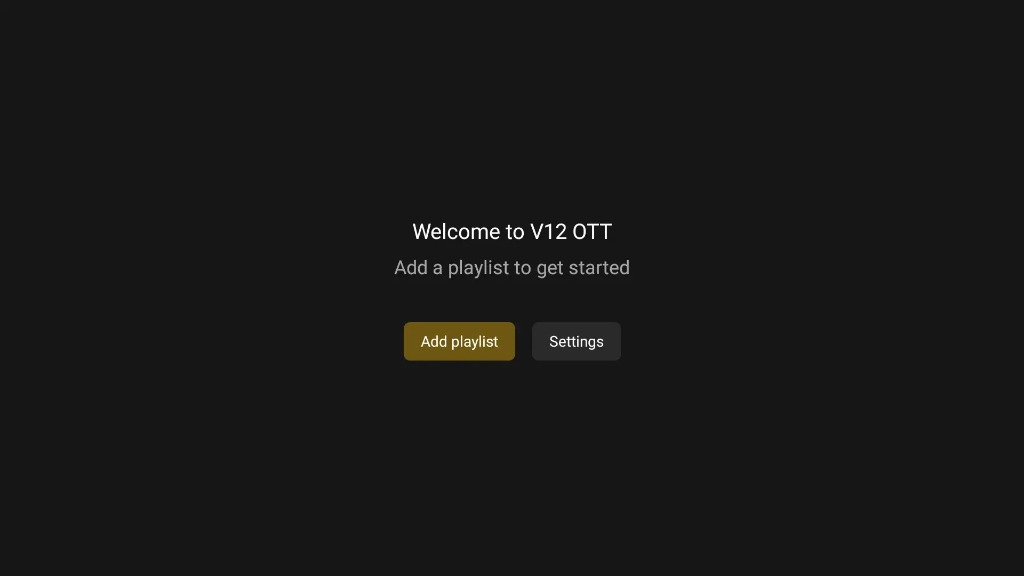
Welcome Screen & Click "Add Playlist"

Step 5 of 8 β€’ Initiating IPTV subscription linking

Upon launching V12 OTT, you will be greeted by the welcome dashboard.

  • The screen displays: "Welcome to V12 OTT - Add a playlist to get started".
  • Click the gold Add playlist button in the center of the screen.
Welcome to V12 OTT Add a playlist to get started
Step 5: Click the gold "Add playlist" button on the welcome screen
6

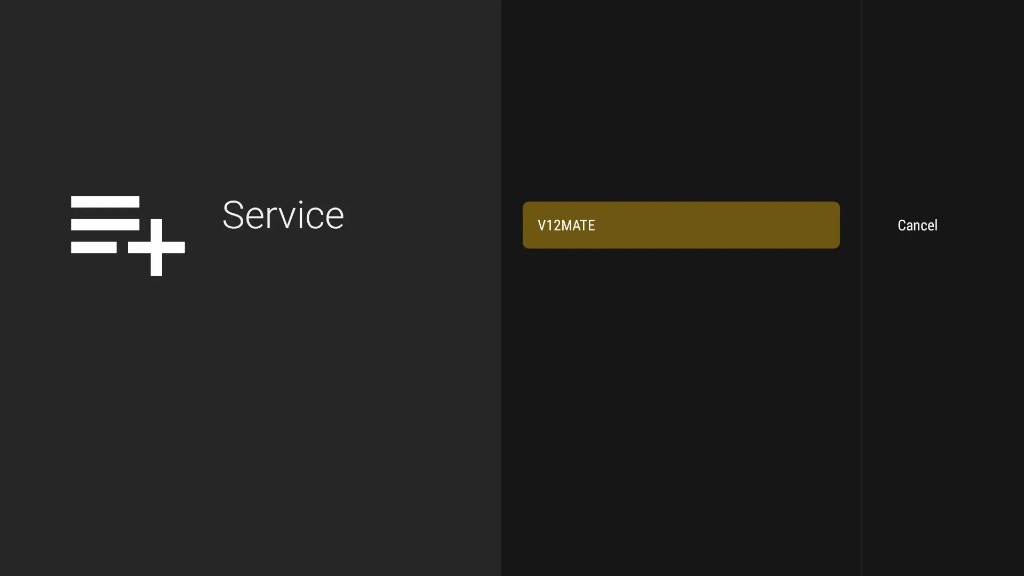
Confirm Service Name (V12MATE)

Step 6 of 8 β€’ Selecting service profile

On the Service configuration screen, select your service provider profile.

  • Highlight the service input box displaying V12MATE.
  • Press the center remote button to proceed to the credentials input screen.
Service V12MATE screen
Step 6: Select service name V12MATE to proceed
7

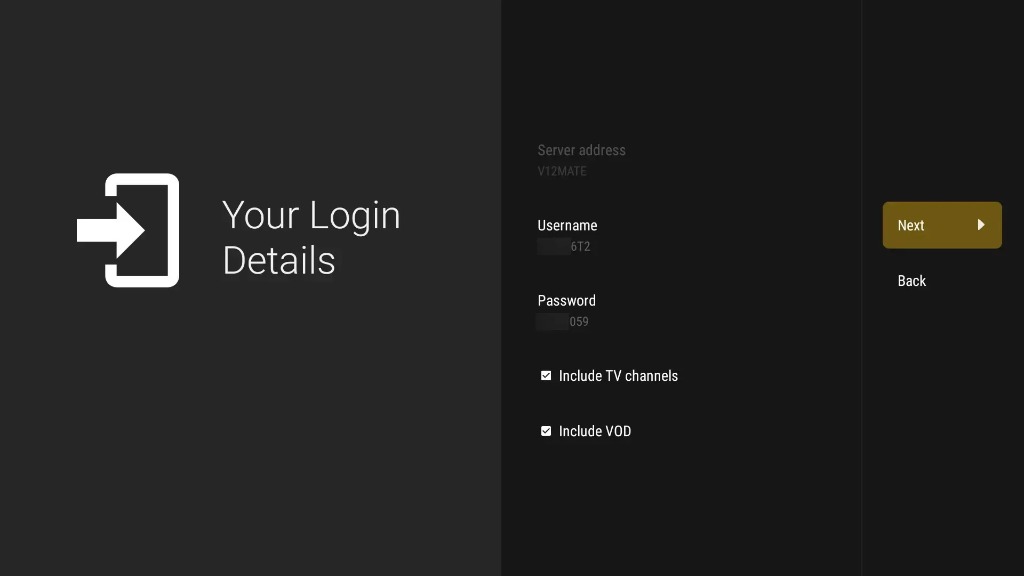
Enter Your Strong8K Login Details

Step 7 of 8 β€’ Inputting Username & Password

Under "Your Login Details", enter your Strong8K account details received via email or WhatsApp.

  • Server address: Automatically filled as V12MATE.
  • Username: Enter your Strong8K unique username.
  • Password: Enter your Strong8K password.
  • Ensure both Include TV channels and Include VOD are checked (marked with a checkmark `βœ“`).
  • Highlight and click the gold Next > button on the right sidebar.
Username
Your Unique Username
Password
Your Unique Password
Your Login Details Username Password Next
Step 7: Enter your credentials, keep channel/VOD checked, and click Next >
8

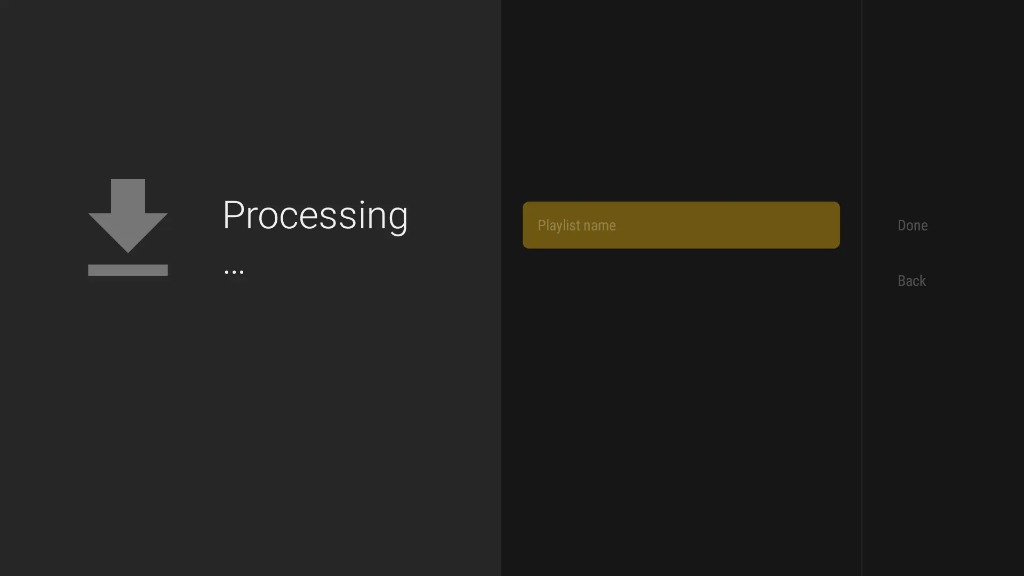
Name Your Playlist & Finalize Sync

Step 8 of 8 β€’ Synchronizing live TV and movie channels

The screen will display "Processing ..." with a download icon.

  • In the Playlist name field, type a label like Strong8K (or keep default V12MATE).
  • Highlight and click Done on the right sidebar.
  • Wait 15–30 seconds while V12 OTT loads all 25,000+ live channels, sports broadcasts, and movie series.
Processing Playlist name Done
Step 8: Name your playlist and click "Done" to synchronize your streams
βœ“

Done! Full 4K/8K Playlist Ready to Stream

Setup Complete β€’ 25,000+ Channels & VOD Activated

Your Android TV is fully configured. Your channels will automatically categorize into Live Sports, National Channels, 4K Movies, and TV Shows with full Electronic Program Guide (EPG).

πŸš€ Pro-Tip for Android TV: For optimal streaming buffer performance, connect your Android TV box via 5GHz Wi-Fi or Ethernet cable.

Need Help with Android TV Setup?

Our 24/7 technical team can assist you with activation or send custom M3U credentials directly via WhatsApp.

πŸ“Ÿ

Formuler & Dreamlink Setup Guide – Strong8K

⏱️ 3 Minutes βœ“ MyTVOnline 2 & 3 / DOL2 Formuler Z8, Z10, Z11, GTV, Dreamlink
πŸ’‘
Important Note: Unlike older MAG boxes, Formuler Z-Series and Dreamlink devices do not require MAC address registration. You can connect immediately with your Strong8K Xtream Codes credentials!
METHOD 1: FORMULER MYTVONLINE (MOL2 & MOL3) SETUP
1

Launch MyTVOnline & Open Connections Menu

Step 1 of 3 β€’ Accessing portal connection settings

Turn on your Formuler box (Z8, Z10, Z11, GTV, or CC model).

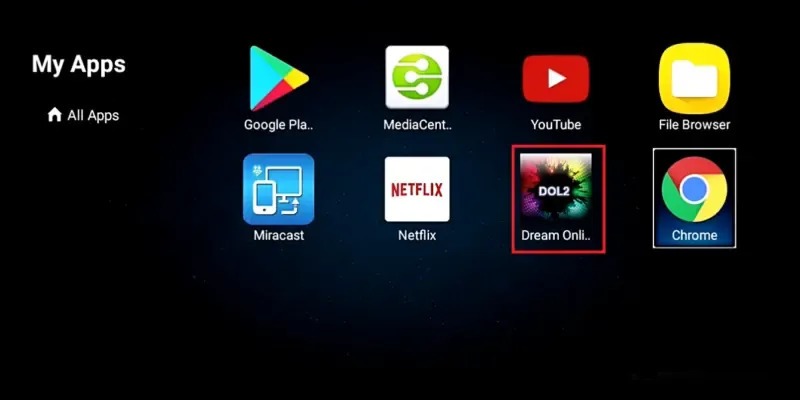
  • From the Formuler Home screen, launch the native MyTVOnline (MOL2 or MOL3) application.
  • Press the Menu button on your remote control.
  • Navigate to Connections and select Add Portal (or Add Xtream Codes API).
2

Enter Strong8K Server & Login Details

Step 2 of 3 β€’ Inputting portal credentials

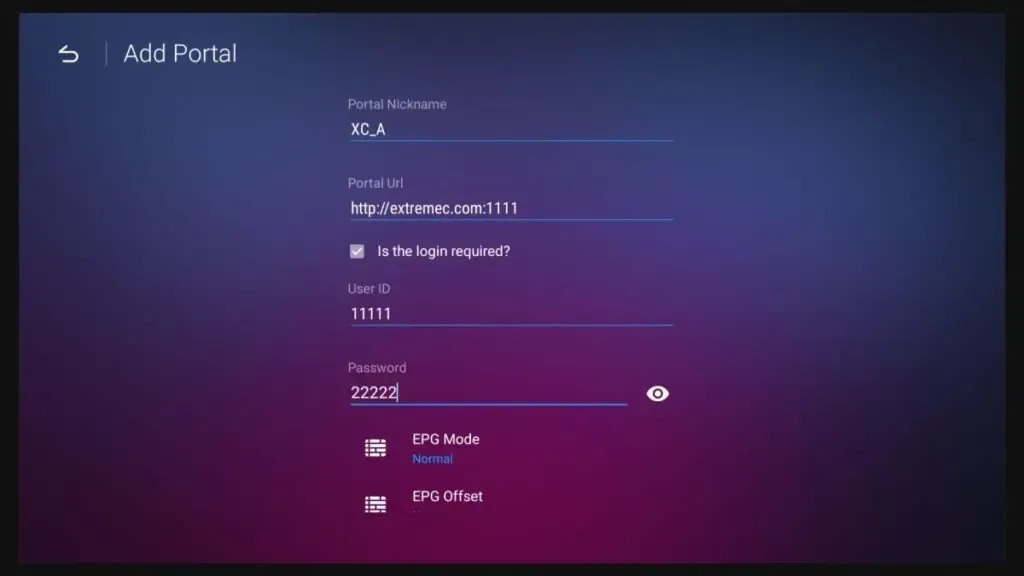
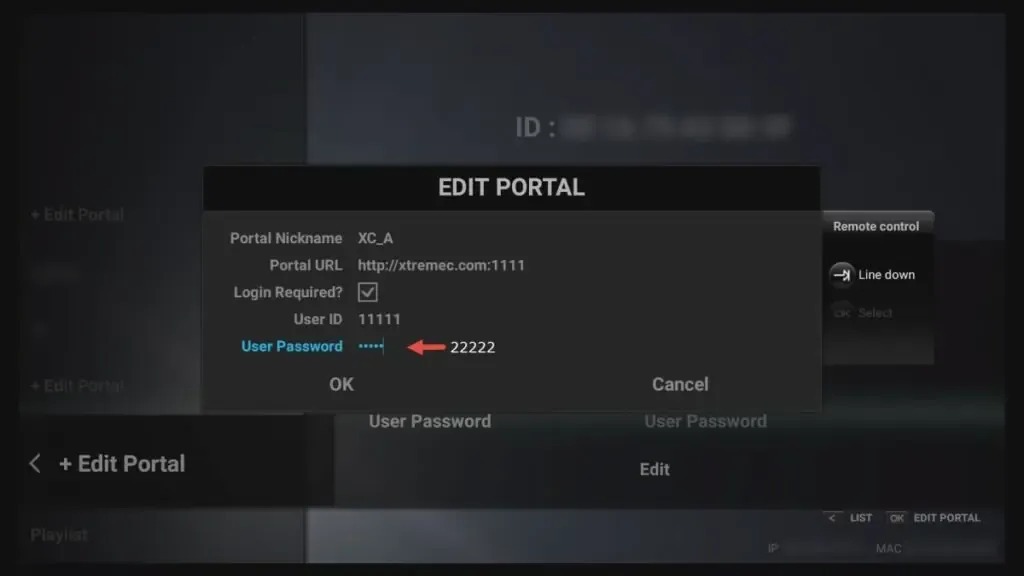
In the Add Portal configuration screen, fill in the parameters from your confirmation email / WhatsApp message:

Portal Nickname:Strong8K (or XC_A)
Portal URL:http://line.strong-8k.tv:80
Is login required?:Check Box [βœ“]
User ID / Username:Your Username
Password:Your Password
EPG Mode:Normal
Tip: Always check "Is the login required?" to reveal the User ID and Password fields.
Formuler MyTVOnline Add Portal Screen
Step 2: Enter Portal URL, check login required, and input User ID and Password
βœ“

Click "Connect" & Enjoy Ultra-Fast Zapping

Setup Complete β€’ Full 7-Day EPG on your Formuler remote

Scroll down and press Connect.

  • Your channels, categories, and Electronic Program Guide (EPG) will load automatically within seconds.
  • Enjoy Formuler's native PiP (Picture-in-Picture), fast channel zapping, and catch-up TV directly with your remote control.

Need Help with Formuler or Dreamlink Setup?

Our dedicated technical team can remotely assist you or provide customized portal server links via WhatsApp 24/7.

πŸ“Ί

Smart TV Setup Guide (Samsung, LG, VIDAA & Roku) – Strong8K

⏱️ 3–5 Minutes βœ“ Hot Player / Hot IPTV Samsung Smart Hub, LG Content Store, VIDAA, Roku
πŸ’‘
Non-Android Smart TV Guide: This guide covers Samsung (Tizen), LG (webOS), Hisense (VIDAA), and Roku TVs using the official Hot Player / Hot IPTV app. If your Smart TV runs Google TV or Android TV (e.g. Sony Bravia, Philips, TCL, Hisense Android), please use our dedicated Android TV Guide.
1

Install "Hot Player" or "Hot IPTV" from Your TV App Store

Step 1 of 5 β€’ Downloading the media player onto your Smart TV

Turn on your Smart TV and open its built-in official application store:

  • Samsung Smart TV: Open Samsung Apps / Smart Hub.
  • LG Smart TV: Open LG Content Store / Apps.
  • Hisense / VIDAA TV: Open VIDAA App Store.
  • Roku TV & Roku Stick: Navigate to Streaming Store / Search Channels.
  • Type "Hot Player" or "Hot IPTV" in the search bar.
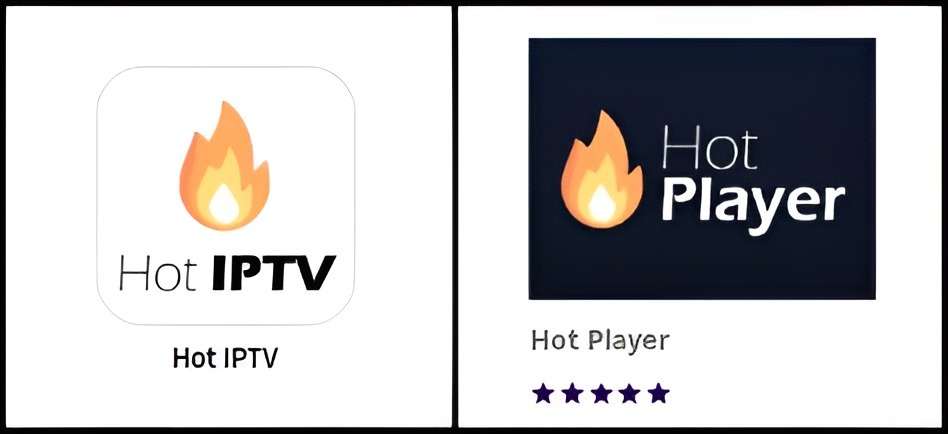
  • Select the official application featuring the flame icon and click Install / Add Channel.
Note: Depending on your TV brand and firmware, the app may be named Hot Player or Hot IPTV. Both versions are official releases from the same developer and are 100% compatible with Strong8K.
Install Hot IPTV or Hot Player on Smart TV App Store
Step 1: Install Hot IPTV or Hot Player from Samsung Apps, LG Content Store, or Roku Store
2

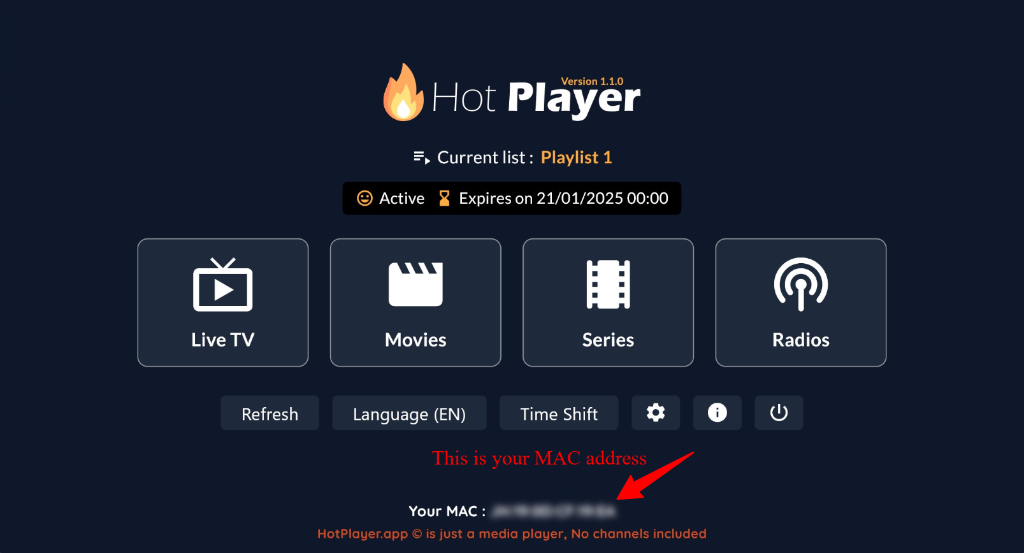
Launch Hot Player & Locate Your TV MAC Address

Step 2 of 5 β€’ Finding your unique TV hardware identifier

Open the newly installed Hot Player application on your TV screen.

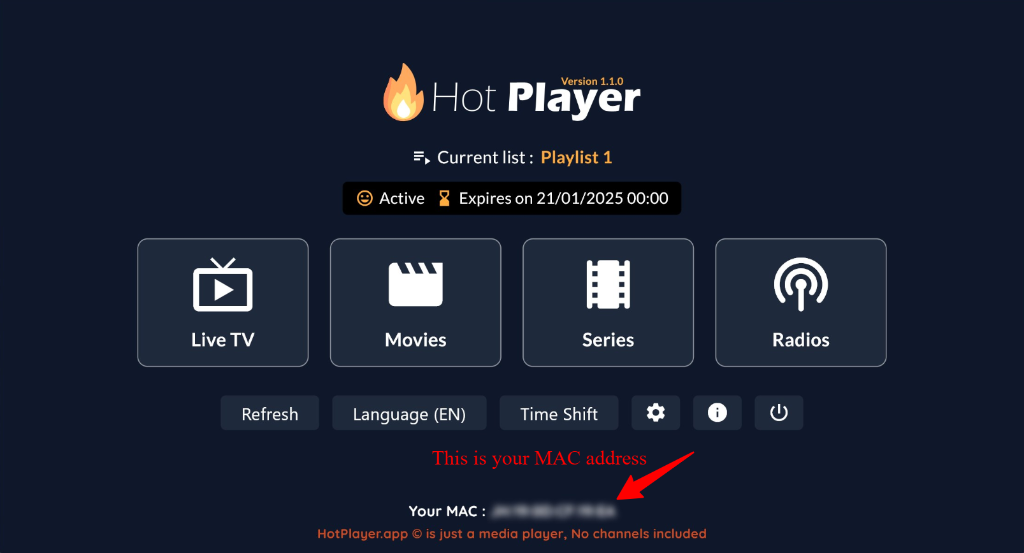
  • The main dashboard will show menus for Live TV, Movies, Series, and Radios.
  • Look at the bottom center of your TV screen.
  • You will see your hardware identifier displayed as: Your MAC : XX:XX:XX:XX:XX.
  • Write down or take a photo of this MAC addressβ€”you will use it to link your Strong8K subscription in the next step.
Tip: Keep the Hot Player app open on your TV or keep your MAC address handy while completing the next step on your phone or computer.
Find Hot Player MAC Address on TV Screen
Step 2: Note down your TV MAC address displayed at the bottom of the Hot Player screen
3

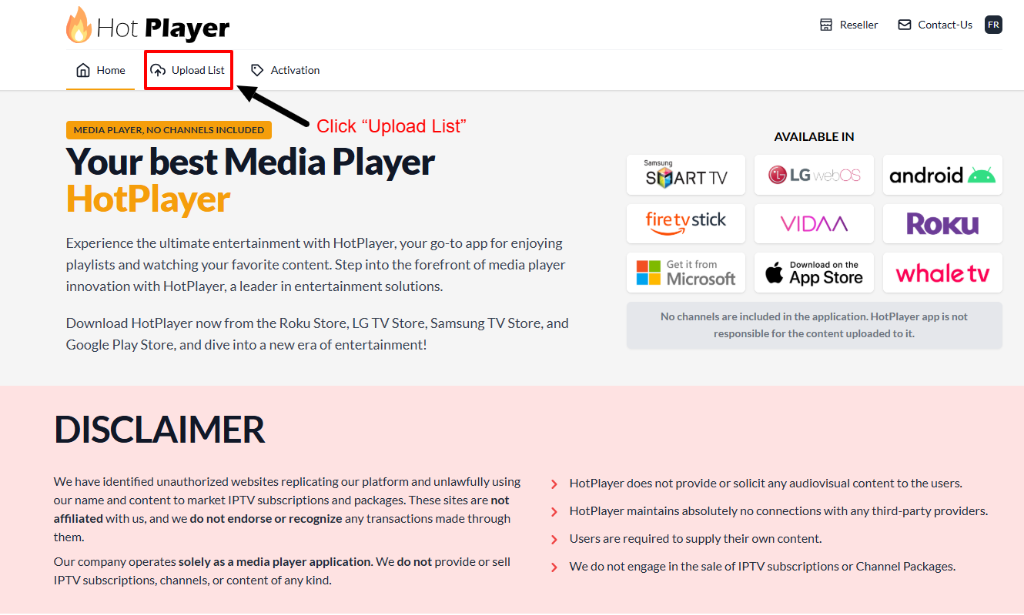
Open hotplayer.app in Your Browser & Click "Upload List"

Step 3 of 5 β€’ Accessing the web management portal

To configure your channels, open a web browser (Chrome, Safari, Firefox, Edge) on your smartphone, tablet, or PC.

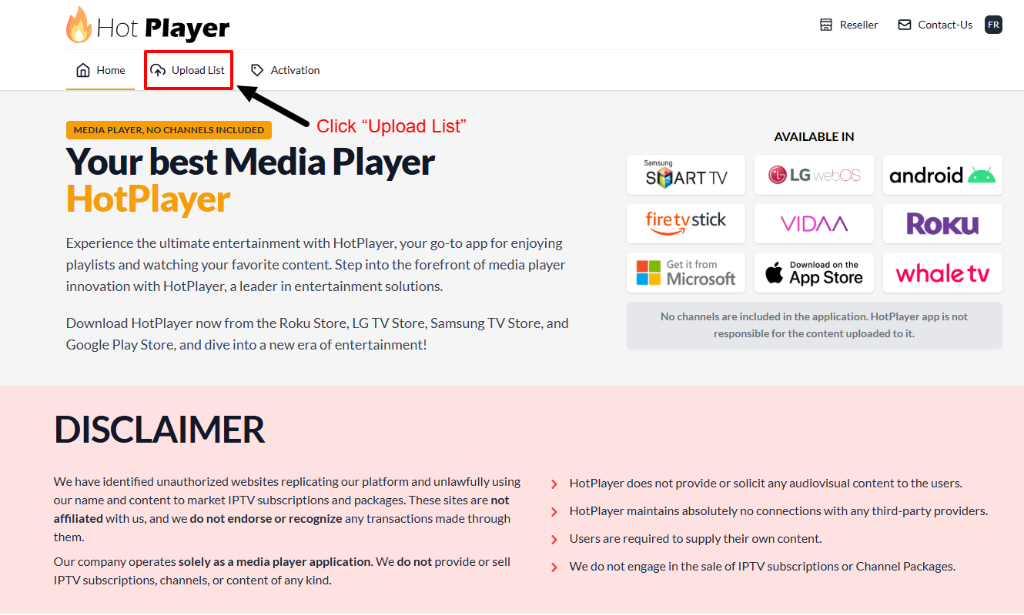
  • Go to the official Hot Player website: hotplayer.app
  • In the top navigation menu, click directly on the Upload List tab (with the cloud upload icon).
  • This portal pairs directly with your TV over the cloudβ€”no computer cables or USB drives needed!
Official Hot Player Portal
https://hotplayer.app
Open Portal β†—
Hot Player Portal Click Upload List
Step 3: Open hotplayer.app in your browser and click on "Upload List" in the top bar
4

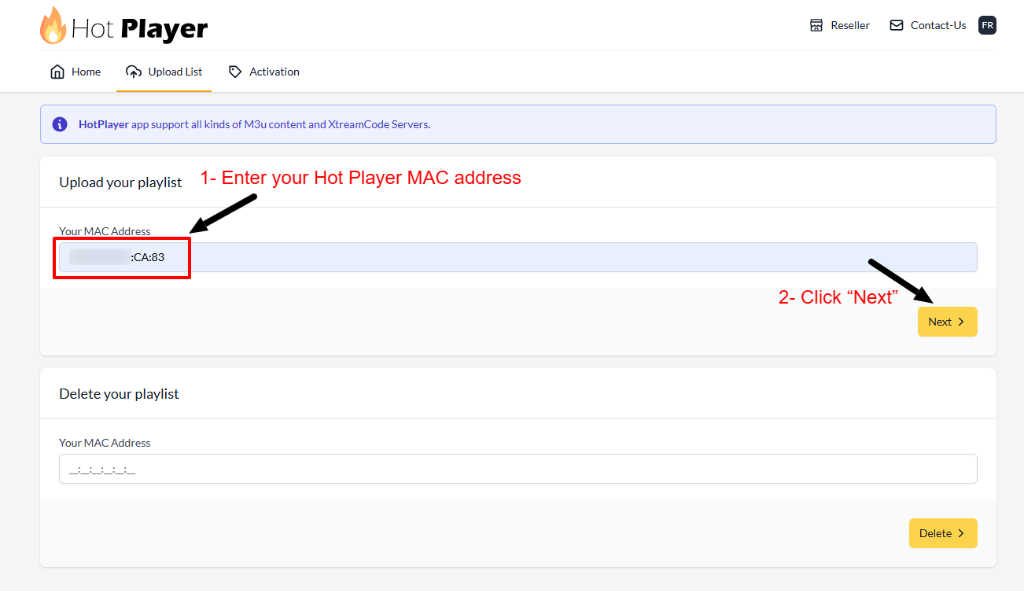
Enter Your TV MAC Address & Click "Next"

Step 4 of 5 β€’ Linking your Smart TV to the portal

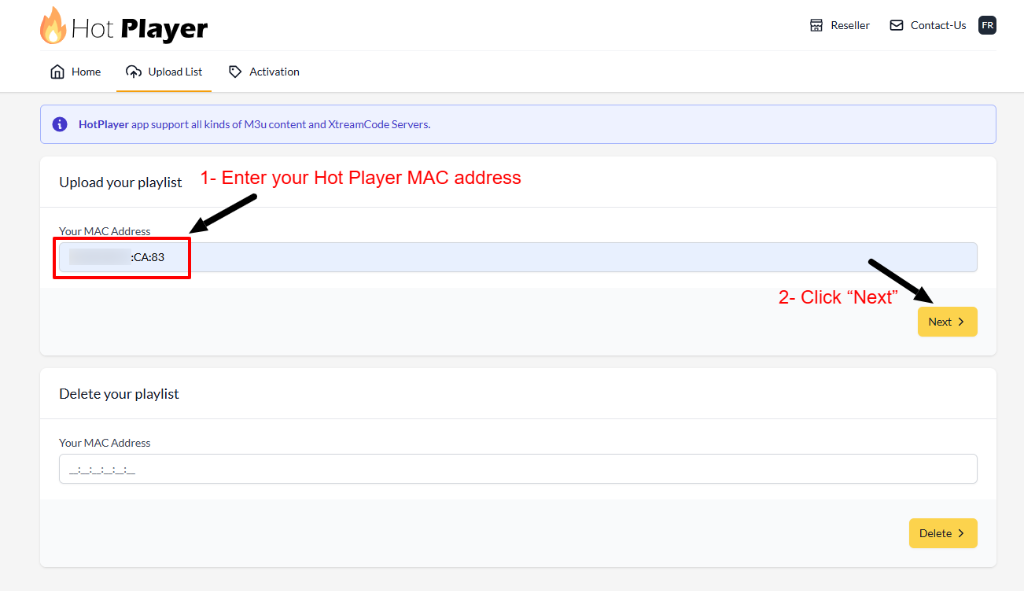
On the Upload List page, locate the top section labeled "Upload your playlist":

  • 1. Enter your MAC Address: Click inside the "Your MAC Address" field and enter the exact MAC address from your TV (Step 2).
  • 2. Click "Next": Click the yellow Next > button on the right side.
  • The portal will authenticate your TV and take you to the playlist credentials entry form.
Important: Make sure you enter your MAC address in the top "Upload your playlist" section, and not in the "Delete your playlist" section below.
Enter Hot Player TV MAC Address and Click Next
Step 4: Type your TV MAC address and click the yellow Next button
5

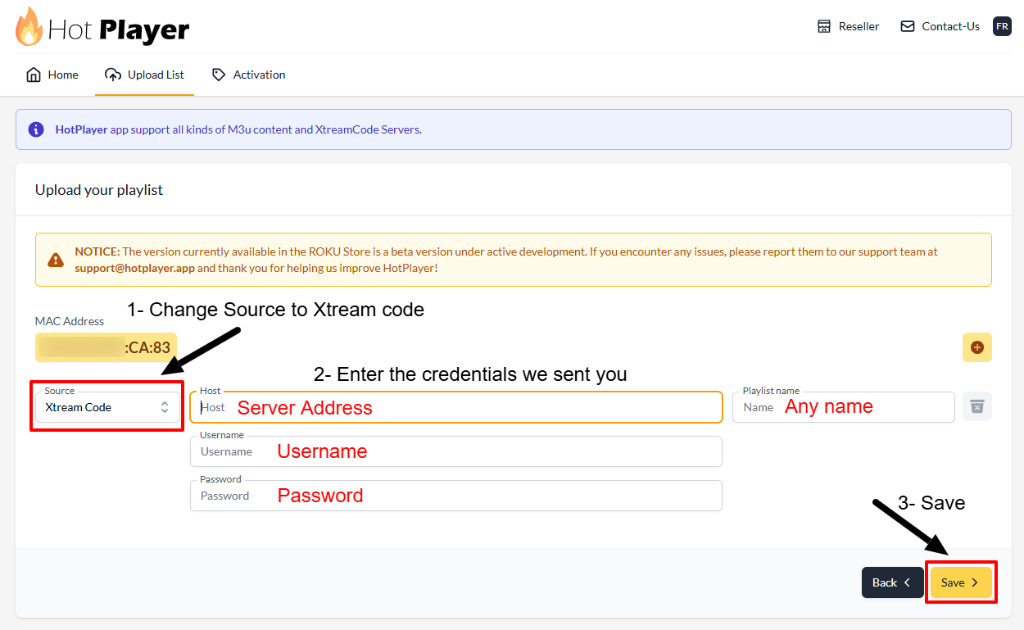
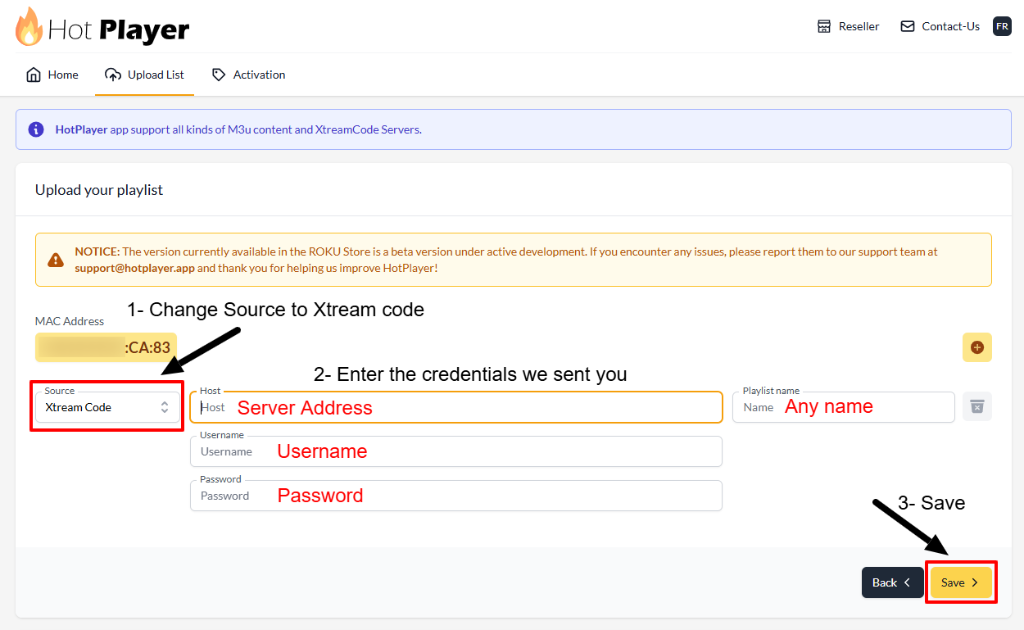
Change Source to "Xtream code", Enter Credentials & Save

Step 5 of 5 β€’ Entering your subscription details and syncing

On the playlist configuration screen, fill in the credentials provided in your Strong8K activation email or WhatsApp message:

  • 1. Change Source: In the Source dropdown menu, select Xtream Code (do not leave it on M3U).
  • 2. Enter Credentials: Fill in the 4 fields exactly as shown:
Source:Xtream Code
Host / Server:http://line.strong-8k.tv:80
Username:Your Username
Password:Your Password
Playlist Name:Strong8K (or any name)
  • 3. Click "Save": Click the yellow Save > button at the bottom right.
βœ“ All Done! Return to your TV screen and click Refresh on Hot Player (or close and re-open the app). Your full Strong8K channel categories, 4K Live sports, and VOD library will sync immediately!
Change Source to Xtream code, enter credentials and save on Hot Player portal
Step 5: Change Source to Xtream code, fill in Host, Username, Password, and click Save
🟣

Roku Device Setup Guide (Roku TV & Sticks) – Strong8K

⏱️ 3–5 Minutes βœ“ Hot Player on Roku Store Roku TV, Streaming Stick 4K, Roku Express, Roku Ultra
πŸ’‘
Native Roku Streaming: You can now stream Strong8K IPTV directly on any Roku TV or Roku Streaming Stick using the official Hot Player / Hot IPTV channel available in the Roku Streaming Store! No phone screen mirroring or external casting required.
1

Install "Hot Player" or "Hot IPTV" from Roku Channel Store

Step 1 of 5 β€’ Adding the player channel to your Roku home screen

Turn on your Roku device and install the official Hot Player channel:

  • Press the Home button on your Roku remote.
  • Scroll down the left sidebar and select Streaming Store (or Search Channels).
  • Type "Hot Player" or "Hot IPTV" into the search bar.
  • Select the official app featuring the orange flame icon and click Add channel.
  • Once added, click Go to channel to launch Hot Player.
Note: Depending on your Roku OS region, the channel may appear as Hot Player or Hot IPTV. Both versions are official releases from the same developer and are fully optimized for Strong8K IPTV streams.
Install Hot Player or Hot IPTV on Roku Channel Store
Step 1: Search and install Hot Player or Hot IPTV from the Roku Channel Store
2

Launch Hot Player on Roku & Note Your Device MAC Address

Step 2 of 5 β€’ Locating your unique Roku hardware identifier

Open Hot Player on your Roku device screen.

  • The dashboard displays menus for Live TV, Movies, Series, and Radios.
  • Look at the bottom center of the screen.
  • You will see your hardware identifier labeled: Your MAC : XX:XX:XX:XX:XX.
  • Write down or photograph this MAC addressβ€”you will enter it on the Hot Player web portal to connect your Strong8K service.
Tip: Keep Hot Player open on your Roku while you complete the web upload in the next step.
Locate Hot Player Roku Device MAC Address
Step 2: Note down your Roku MAC address displayed at the bottom of the Hot Player screen
3

Open hotplayer.app in Your Browser & Click "Upload List"

Step 3 of 5 β€’ Accessing the web management portal

On your smartphone, tablet, laptop, or desktop computer, open any web browser:

  • Navigate to the official portal: hotplayer.app
  • In the top navigation menu, click directly on the Upload List tab (with the cloud upload icon).
  • The web portal pairs your Strong8K subscription directly to your Roku over the cloud.
Official Hot Player Portal
https://hotplayer.app
Open Portal β†—
Open hotplayer.app and click Upload List
Step 3: Open hotplayer.app in your browser and click on "Upload List" in the top bar
4

Enter Your Roku MAC Address & Click "Next"

Step 4 of 5 β€’ Linking your Roku device to the portal

On the Upload List webpage, look at the top section labeled "Upload your playlist":

  • 1. Enter your Roku MAC: Type the exact MAC address from your Roku TV (Step 2) into the "Your MAC Address" field.
  • 2. Click "Next": Click the yellow Next > button on the right side.
  • The portal will authenticate your Roku and redirect you to the playlist credentials entry form.
Important: Ensure you enter your MAC address in the top "Upload your playlist" section, and not in the "Delete your playlist" box.
Enter Roku MAC address and click Next
Step 4: Type your Roku MAC address and click the yellow Next button
5

Change Source to "Xtream code", Enter Credentials & Save

Step 5 of 5 β€’ Entering your subscription details and syncing

On the playlist configuration screen, fill in the details provided in your Strong8K activation email or WhatsApp message:

  • 1. Change Source: In the Source dropdown menu, switch from M3U to Xtream Code.
  • 2. Enter Credentials: Fill in the fields exactly as shown below:
Source:Xtream Code
Host / Server:http://line.strong-8k.tv:80
Username:Your Username
Password:Your Password
Playlist Name:Strong8K (or any name)
  • 3. Click "Save": Click the yellow Save > button at the bottom right.
βœ“ All Done! Return to your Roku TV screen and click Refresh on Hot Player (or close and re-open the channel). Your full Strong8K live channels, sports packages, movies, and TV shows will immediately load in crisp 4K Ultra HD!
Change Source to Xtream code, enter credentials and save for Roku
Step 5: Change Source to Xtream code, fill in Host, Username, Password, and click Save
🍎

Apple iOS, iPadOS & Apple TV 4K Setup Guide

⏱️ 2–3 Minutes βœ“ No Jailbreak Needed App Store Verified
1

Download "Smarters Player Lite" from Apple App Store

Open the App Store on your iPhone or iPad, search for Smarters Player Lite, and download the official app.

2

Select "Login with Xtream Codes API"

Open the app, accept terms, and click Login with Xtream Codes API.

3

Enter Credentials

Fill in Strong8K, Username, Password, and Server URL, then click ADD USER.

βœ“

Tap "Live TV" or "Movies" and Start Watching

Content will sync with full EPG schedule and smooth touch controls.

1

Install iMPlayer from App Store

Download iMPlayer, select "Add Playlist > XC API", enter your Strong8K login credentials, and connect.

1

Apple TV 4K: Install IPTVX or GSE Smart IPTV

On Apple TV App Store, install IPTVX or GSE Smart IPTV for high frame-rate 4K 60fps streaming.

πŸ’»

Windows PC & Mac Setup Guide – Strong8K

⏱️ 2 Minutes βœ“ Desktop App & Web Player Windows 11, 10, macOS Ventura/Sonoma
1

Download IPTV Smarters Pro for Windows / Mac

Download the official desktop client (available for Windows .exe and Mac .dmg).

2

Run the Installer and Launch App

Open the app, select "Add New User" > "Login with Xtream Codes API".

3

Enter Credentials and Click Add User

Enter Any Name (Strong8K), Username, Password, and Server URL. All channels will load with full keyboard and mouse navigation.

1

Watch Directly in Browser via Web Player

No software download required! Open Chrome, Edge, Safari, or Firefox, navigate to our Web Player portal, log in with your credentials, and start streaming immediately.

1

VLC Media Player Setup

Open VLC > Media > Open Network Stream (Ctrl+N). Paste your Strong8K M3U Plus URL and press Play.

πŸ“±

Android Phone & Tablet Setup Guide

⏱️ 2 Minutes βœ“ Play Store Verified Samsung Galaxy, Pixel, Xiaomi, OnePlus
1

Download "IPTV Smarters Pro" or "XCIPTV"

Open Google Play Store on your smartphone or tablet, search for IPTV Smarters Pro (or XCIPTV), and tap Install.

2

Log in with Xtream Codes API

Launch the app, enter your Username, Password, and Server URL, and tap Add User.

βœ“

Stream on the Go in 4K/HD

Enjoy live sports, movies, and TV shows anywhere with WiFi or 4G/5G mobile connection!

πŸ“‘

BuzzTV Box Setup Guide – Strong8K

⏱️ 3 Minutes BuzzTV X5, HD5, Vidstick series
1

Launch the BuzzTV 5 App

From your BuzzTV home screen, open the native BuzzTV 5 media application.

2

Navigate to Server Settings > Add Server

Press the Menu button on your BuzzTV remote, go to Settings > Server > Add Server.

3

Enter Xtream Codes Credentials

Select Xtream Codes format, fill in Server URL, Username, and Password, then click Connect.

πŸ“¦

MAG Box Setup Guide – Strong8K

⏱️ 3–5 Minutes MAG 250, 254, 322, 420, 520, 524
⚠️
MAG Box Requirement: MAG devices require registering your device's MAC Address (starts with 00:1A:79:...). When ordering your subscription, enter your MAG MAC address or message it to us on WhatsApp for instant portal activation.
1

Go to Inner Portal > System Settings

Turn on your MAG box without loading. Navigate to Settings > System Settings.

2

Select Servers > Portals

Open the Servers menu and select Portals.

3

Enter Strong8K Portal Details

Portal 1 Name:Strong8K
Portal 1 URL:Provided in MAG Activation Email (e.g. http://mag.8k-stream.net/c/)
βœ“

Save Settings and Reboot Portal

Press Save, return to main menu, and select Reboot Device. The Strong8K portal will load with full EPG support.