🔥

Amazon FireStick TV Setup Guide – Strong8K

⏱️ 3–5 Minutes ✓ Xtream Codes API Firestick 4K / Max / Cube / Lite
ℹ️
Compatible Devices: Amazon Fire TV Stick (All Generations), Fire TV Stick 4K, 4K Max, Fire TV Cube, Fire TV Lite, and Insignia/Toshiba Fire TV Edition Smart TVs.
1

Install the "Downloader" App from Amazon Appstore

Step 1 of 5 • Locating the official sideloading tool

To install IPTV applications on Fire TV, you first need Amazon's official Downloader app by AFTVnews.

  • From your Fire TV Home screen, go to the Find menu and select Search.
  • Type Downloader into the on-screen search bar using your Fire TV remote.
  • Under APPS & GAMES, select the bright orange Downloader tile (rated 4.5+ stars by 670,000+ users).
  • Click Download or Get to install it onto your Firestick.
✓ Safety Note: Downloader is 100% free, verified, and safe from the official Amazon Appstore.
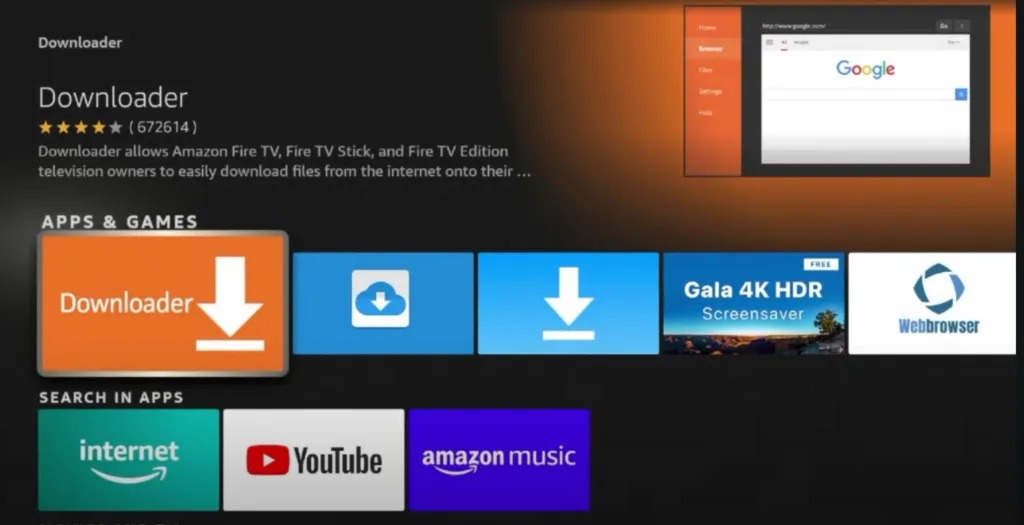
Locating Downloader App in Fire TV Apps and Games
Step 1: Select the orange Downloader app under "APPS & GAMES"
2

Open Fire TV Settings & Select "My Fire TV"

Step 2 of 5 • Accessing device settings

Amazon Fire OS requires enabling permission to sideload IPTV streaming apps. Begin by navigating to your device settings.

  • Press the Home button on your remote to return to the Fire TV Home Screen.
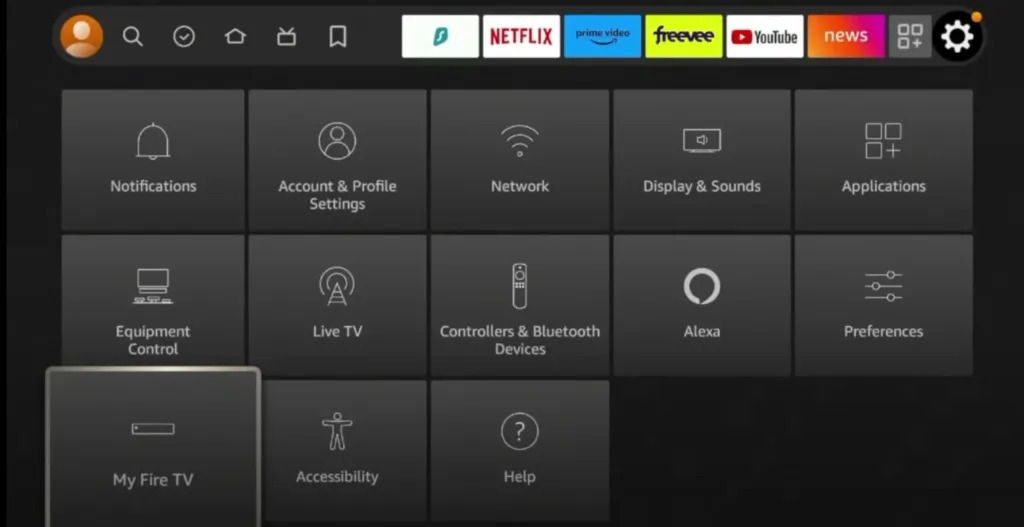
  • Scroll across the top menu to the far right and select the Settings (Gear icon).
  • In the Settings menu grid, scroll down to the bottom row.
  • Highlight and click on My Fire TV (on older models, this may be labeled "Device" or "System").
Fire TV Settings Grid with My Fire TV Selected
Step 2: Navigate to Settings (Gear) and select "My Fire TV"
3

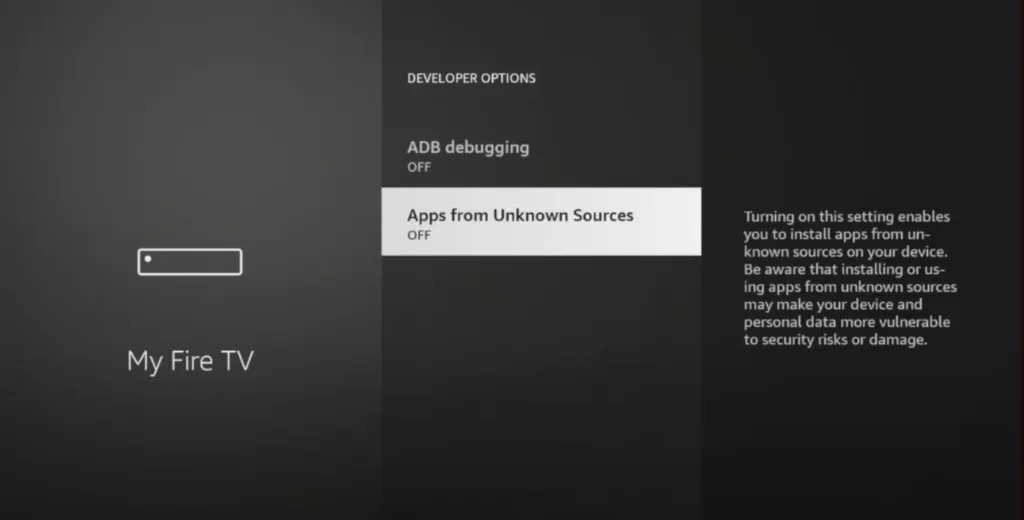
Open Developer Options & Select Unknown Sources

Step 3 of 5 • Unlocking developer permissions

Inside the My Fire TV menu, locate and open Developer Options.

  • Click on Developer Options.
  • Highlight Apps from Unknown Sources (or "Install Unknown Apps" on modern Fire OS versions).
💡 Developer Options Missing on your Firestick?
Amazon hides this menu by default on newer Fire OS 7 and 8 updates. To unhide it in seconds:
  1. Go to Settings > My Fire TV > About.
  2. Highlight your Fire TV Stick name and press the center remote button 7 times rapidly.
  3. A prompt will appear: "No need, you are already a developer".
  4. Press Back once, and Developer Options will now be unlocked!
Developer Options Apps from Unknown Sources
Step 3: Open Developer Options > Apps from Unknown Sources
4

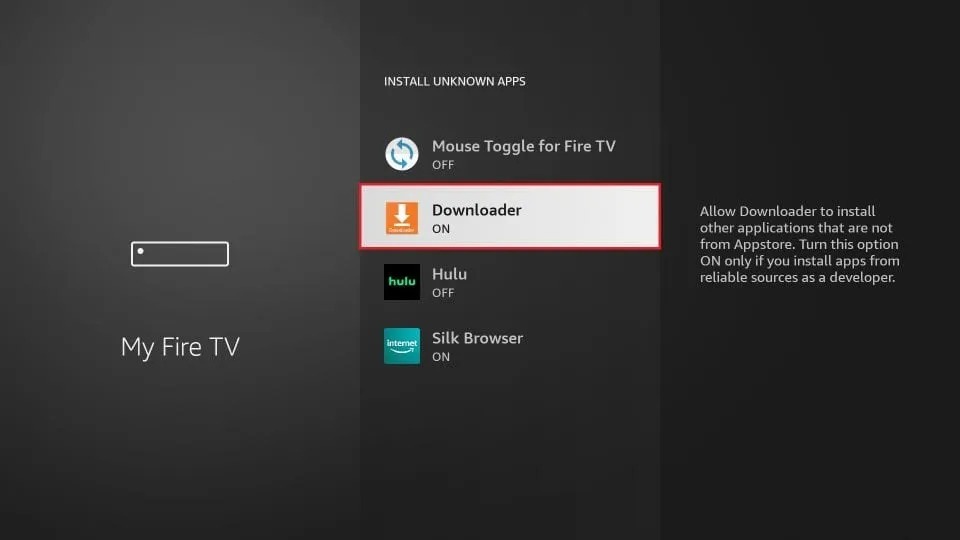
Toggle "Downloader" to ON in Install Unknown Apps

Step 4 of 5 • Authorizing the Downloader application

To allow Downloader to install the Strong8K player package, you must switch its permission to ON.

  • Inside Developer Options, select Install Unknown Apps (or turn Apps from Unknown Sources to ON).
  • Scroll down through your installed apps until you locate Downloader.
  • Click on Downloader to switch its status from OFF to ON.
  • Downloader is now fully authorized to install your IPTV streaming media player.
Protection: Only Downloader is granted permission. Your Fire TV remains secure.
Install Unknown Apps Downloader ON
Step 4: Switch Downloader to "ON" in Install Unknown Apps
5

Launch Downloader & Enter the Download Code

Step 5 of 5 • Downloading your streaming player

Now open Downloader to grab your IPTV player installation package.

  • Hold down the Home button on your remote, choose Apps, and open Downloader.
  • If opening for the first time, click Allow for file storage permissions, then click OK.
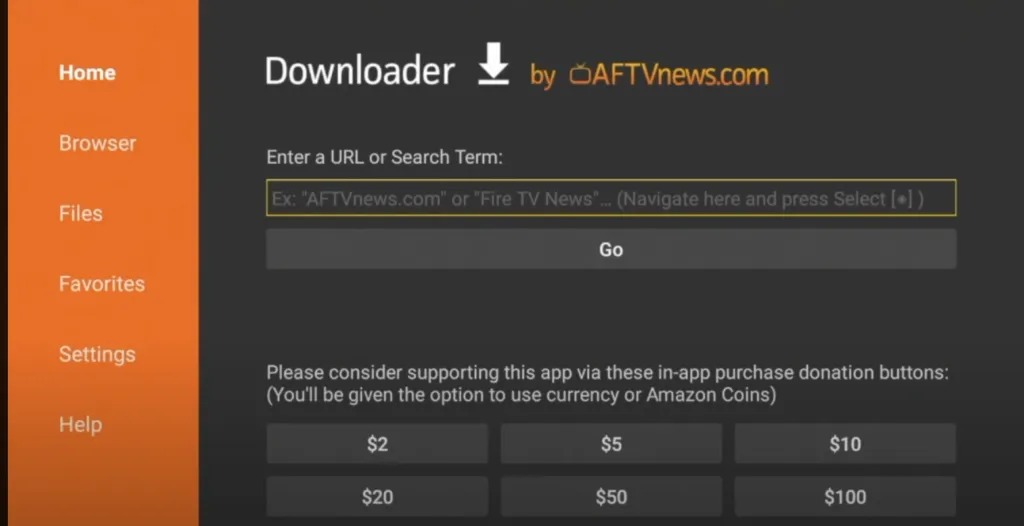
  • On the Home tab (orange sidebar), click into the search box: "Enter a URL or Search Term".
  • Enter the Quick Code: 298344 (or 272483 for TiviMate).
  • Click the Go button. The download will start automatically!
Downloader Quick Code
298344
Downloader App Home Screen URL Input Box
Step 5: Enter the code in Downloader URL bar and click Go
6

Automatic Redirection & APK Installation

Step 6 of 6 • Downloading and installing the media player

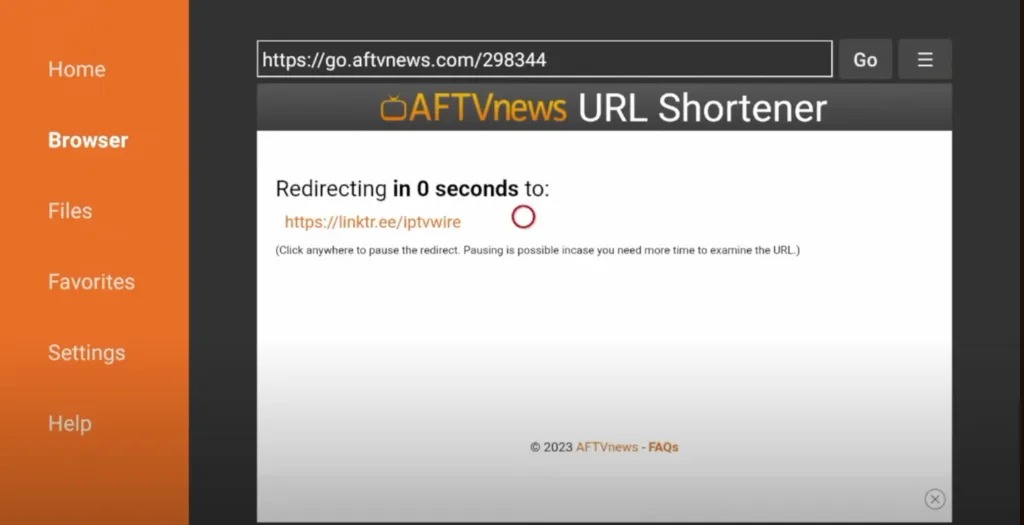
Downloader's built-in web browser will load the AFTVnews URL Shortener service and initiate the download.

  • The browser will display "Redirecting in 0 seconds..." and route to the secure APK download link.
  • Downloader will immediately commence the APK download progress bar.
  • Once the download reaches 100%, an installation pop-up will appear on your TV. Click Install.
  • Once installed, click Done, then click Delete twice to remove the APK setup file and save Firestick storage space!
AFTVnews URL Shortener Redirection in Downloader
Step 6: AFTVnews URL Shortener automatically redirects to download the APK
✓

Complete Installation & Connect to Strong8K

Setup Complete • Start streaming 25,000+ live channels

Once the download completes, Fire TV will prompt you to install. Click Install, then click Open.

  • Open your installed player (TiviMate or IPTV Smarters Pro).
  • Select Add Playlist > Login with Xtream Codes API.
  • Enter your Strong8K activation credentials:
Playlist Name
Strong8K
Server URL / Portal
http://line.strong-8k.tv:80
Username
Your Username (from email)
Password
Your Password (from email)

Click Add User or Connect. Wait 15–30 seconds for your full playlist of 25,000+ live TV channels, sports derbies, EPG guide, and 4K/8K movies to sync!

Need Assistance with Firestick Setup?

Our dedicated support engineers can guide you through remote activation or send direct M3U setup links via WhatsApp 24/7.